
UX 측면이나 보안 측면에서 지문이나 Face ID로 로그인하는 하드웨어 방식으로 로그인 기능이 추가되는게 트렌드 같다. 스마트폰과 브라우저에서는 이미 API 를 제공해주기 때문에 이것을 사용해서 개발하는데에는 그렇게 어렵지가 않았다.
사용자의 아이디와 비밀번호를 우리쪽 데이터베이스로 관리하면 암호화나 서버 접근 등 신경쓸 보안이 많다. 때로는 크리덴셜 스터핑 등으로부터 데이터베이스를 지키는것도 신경쓰자면 생각할게 많아지기 마련이다.
그래서 FIDO(Fast IDentity Online) 라는 표준이 나왔다.
1. FIDO란 무엇인가?
FIDO는 사용자의 디바이스(스마트폰, 노트북 지문 인식기, USB 보안 키 등)에서 사용자를 로컬로 인증하고, 서버로는 비밀번호 대신 암호화된 서명만을 전송하는 프로토콜이다. 개인키(Private Key)는 사용자의 기기 밖으로 나가지 않기 때문에 서버가 해킹당해서 데이터베이스가 털려도 서버는 공개키(Public Key)밖에 없기 때문에 해커는 사용자의 계정으로 로그인할 수 없다는 장점이 있다.
2. FIDO (WebAuthn) 인증 흐름도
FIDO의 동작은 등록(Registration)과 인증(Authentication, 로그인) 이라는 두가지 단계로 나뉜다.
등록 (Registration / Attestation) 흐름
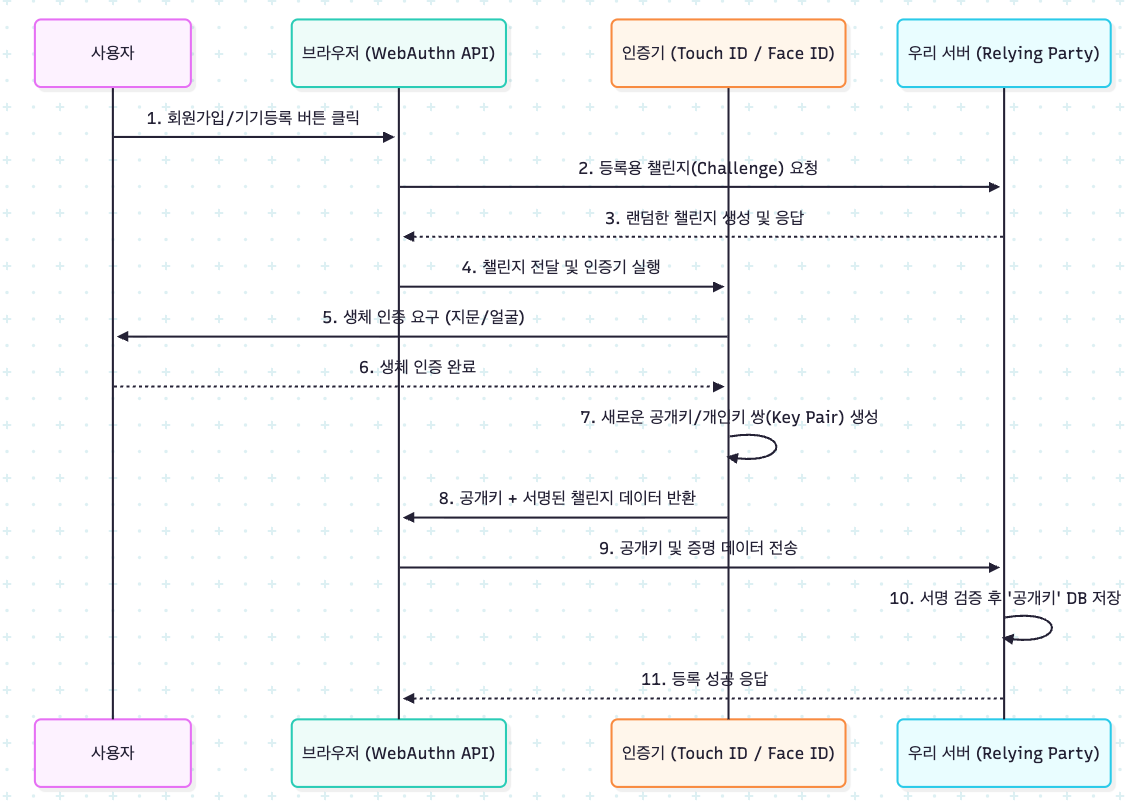
로그인 (Authentication / Assertion) 흐름

챌린지(Challenge)
서버는 매번 랜덤한 문자열(Challenge)을 브라우저에 보내면 기기(인증기)는 이 챌린지를 '개인키'로 서명해서 보낸다. 서버는 무엇을 보냈던 챌린지가 맞는지, 서명이 유효한지 '공개키'로 서명을 검증한다. 이 과정을 통해 Replay Attack 를 방어할 수 있다.
개발할때 사용되는 챌린지는 보안 및 인증에서의 챌린지로서 '챌린지-응답 인증(Challenge-Response Authentication)'의 유형으로 많이 활용되기 때문에 상황의 흐름을 이해하면 어떤 챌린지를 하는지 파악하기가 쉽다.
- FIDO의 챌린지 (암호학적 Nonce) : 서버가 로그인 요청을 받을 때마다 매번 다른 랜덤한 난수를 만들어 브라우저로 보내고 스마트폰이나 보안 키는 해당 난수를 '개인키'로 서명하여 돌려보낸다. (Replay Attack 방어)
- DNS 챌린지 : 인증 기관(CA)이 특정 문자열을 주면서, 이 값을 TXT 레코드에 등록하면 네임서버에 DNS 값을 확인한다.(도메인 소유권 증명)
- CAPTCHA (캡챠) 챌린지: 사람인지 로봇인지..
Node.js + Express + Vanilla JS로 구현해 보기
실무에서는 WebAuthn의 데이터 규격(CBOR 포맷, COSE 키 포맷 등)을 파싱하기 위해 @simplewebauthn/server 같은 라이브러리를 사용해야 한다. 하지만 지금은 원리 파악을 위해 crypto 모듈만 사용해서 흐름을 이해해봤다.
백엔드 Express 서버
// fido-server.js
const express = require('express');
const crypto = require('crypto');
const app = express();
app.use(express.json());
app.use(express.static('public')); // 프론트엔드 HTML 서빙용

// DB
const usersDB = {};
const challengesDB = {};

// 1. 등록용 챌린지 발급
app.post('/api/register/challenge', (req, res) => {
    const { username } = req.body;

    // 32바이트 랜덤 챌린지 생성 (Base64Url 인코딩)
    const challenge = crypto.randomBytes(32).toString('base64url');
    challengesDB[username] = challenge; // 서버에 임시 저장

    res.json({
        challenge,
        user: { id: Buffer.from(username).toString('base64url'), name: username },
        rp: { name: 'My Local WebAuthn Service', id: 'localhost' } // Relying Party (Express 서버 정보)
    });
});

// 2. 등록 검증, 공개키 저장
app.post('/api/register/verify', (req, res) => {
    const { username, publicKey, signature, clientDataJSON } = req.body;

    // CBOR/ASN.1 파싱 과정 생략
    usersDB[username] = { publicKey };
    delete challengesDB[username]; // 사용한 챌린지 폐기

    res.json({ status: 'ok', message: '기기 등록 완료' });
});

// 3. 로그인용 챌린지 발급
app.post('/api/login/challenge', (req, res) => {
    const { username } = req.body;

    if (!usersDB[username]) {
        return res.status(404).json({ error: '등록되지 않은 사용자입니다.' });
    }

    const challenge = crypto.randomBytes(32).toString('base64url');
    challengesDB[username] = challenge;

    res.json({ challenge, rpId: 'localhost' });
});

// 4. 로그인 서명 검증
app.post('/api/login/verify', (req, res) => {
    const { username, signature, authenticatorData, clientDataJSON } = req.body;

    const user = usersDB[username];
    const expectedChallenge = challengesDB[username];

    if (!user || !expectedChallenge) {
        return res.status(400).json({ error: '잘못된 요청입니다.' });
    }

    // 전달받은 데이터를 서버에 저장된 공개키로 서명해서 검증
    // crypto.createVerify('SHA256').update(데이터).verify(user.publicKey, signature);
    // 임시로 무조건 승인 되도록
    const isValidSignature = true;

    if (isValidSignature) {
        delete challengesDB[username]; // 챌린지 1회용 폐기
        return res.json({ status: 'ok', message: '로그인 성공!' });
    } else {
        return res.status(401).json({ error: '서명 검증 실패' });
    }
});

app.listen(3000, () => console.log('FIDO 서버 실행: http://localhost:3000'));
프론트엔드 Vanilla JS - WebAuthn API 호출
웹 브라우저에 내장된 navigator.credentials API를 호출하여 OS의 생체 인증(Touch ID, Windows Hello 등)을 트리거하는 프론트엔드 코드이다. 사용하기는 너무 간단하다. https://developer.mozilla.org/en-US/docs/Web/API/Navigator/credentials
Navigator: credentials property - Web APIs | MDN
developer.mozilla.org
<!DOCTYPE html>
<html>
<head><title>FIDO WebAuthn 테스트</title></head>
<body>
    <h2>FIDO 생체 인증 테스트</h2>
    <input type="text" id="username" placeholder="유저 이름 입력">
    <button onclick="registerDevice()">기기 등록 (회원가입)</button>
    <button onclick="login()">생체 로그인</button>

    <script>
        // ArrayBuffer <-> Base64Url 유틸리티 함수 (WebAuthn 규격 맞춤용)
        function bufferToBase64url(buffer) {
            const bytes = new Uint8Array(buffer);
            let str = '';
            for (let charCode of bytes) str += String.fromCharCode(charCode);
            return btoa(str).replace(/\+/g, '-').replace(/\//g, '_').replace(/=/g, '');
        }

        // 1. 기기 등록 함수
        async function registerDevice() {
            const username = document.getElementById('username').value;

            // 1-1. 서버에 챌린지 요청
            const challengeRes = await fetch('/api/register/challenge', {
                method: 'POST', headers: {'Content-Type': 'application/json'},
                body: JSON.stringify({ username })
            }).then(r => r.json());

            // 1-2. 브라우저 WebAuthn API 호출 (지문/얼굴 인식 창 뜸)
            const credential = await navigator.credentials.create({
                publicKey: {
                    challenge: new Uint8Array(32), // 실제론 서버에서 받은 challenge를 버퍼로 변환해야 함
                    rp: { name: challengeRes.rp.name, id: challengeRes.rp.id },
                    user: {
                        id: new Uint8Array(16),
                        name: challengeRes.user.name,
                        displayName: challengeRes.user.name
                    },
                    pubKeyCredParams: [{ type: "public-key", alg: -7 }], // ES256 암호화 알고리즘
                    authenticatorSelection: { userVerification: "required" }, // 생체인증 필수
                    timeout: 60000,
                    attestation: "direct"
                }
            });

            // 1-3. 생성된 공개키와 증명 데이터를 서버로 전송하여 저장
            await fetch('/api/register/verify', {
                method: 'POST', headers: {'Content-Type': 'application/json'},
                body: JSON.stringify({
                    username,
                    publicKey: "dummy_public_key_data", // (개념 증명용)
                    clientDataJSON: bufferToBase64url(credential.response.clientDataJSON)
                })
            });
            alert('기기 등록 완료');
        }

        // 2. 로그인 함수
        async function login() {
            const username = document.getElementById('username').value;

            // 2-1. 서버에 로그인용 챌린지 요청
            const challengeRes = await fetch('/api/login/challenge', {
                method: 'POST', headers: {'Content-Type': 'application/json'},
                body: JSON.stringify({ username })
            }).then(r => r.json());

            // 2-2. WebAuthn API 호출하여 챌린지 서명 요구 (지문/얼굴 인식 창 뜸)
            const assertion = await navigator.credentials.get({
                publicKey: {
                    challenge: new Uint8Array(32), // 서버에서 받은 challenge 버퍼
                    rpId: challengeRes.rpId,
                    userVerification: "required",
                    timeout: 60000
                }
            });

            // 2-3. 서명된 데이터를 서버로 전송하여 로그인 검증
            const verifyRes = await fetch('/api/login/verify', {
                method: 'POST', headers: {'Content-Type': 'application/json'},
                body: JSON.stringify({
                    username,
                    signature: bufferToBase64url(assertion.response.signature),
                    authenticatorData: bufferToBase64url(assertion.response.authenticatorData),
                    clientDataJSON: bufferToBase64url(assertion.response.clientDataJSON)
                })
            }).then(r => r.json());

            alert(verifyRes.message);
        }
    </script>
</body>
</html>
4. 마무리하며
WebAuthn 스펙을 추상화하여 그 데이터의 흐름(Challenge - 서명 - 검증)만을 직관적으로 만들어봤다.
실제 프로덕션 환경에서는 기기(브라우저)가 넘겨준 clientDataJSON이나 authenticatorData 바이너리를 파싱하고, X.509 인증서 포맷이나 COSE 형식으로 된 공개키를 파싱하여 crypto 모듈로 직접 서명(Signature)을 검증하는 복잡한 수학적 과정이 필요하다.
또 다른 기기로 로그인을 하려고 나온게 패스키다.
'임시보관 > 로그인 서비스' 카테고리의 다른 글
| [인증] - 패스키(Passkey) 인증의 마지막?.. (0) | 2024.02.26 |
|---|---|
| [인증]: OpenId Connect (OIDC) Protocol And JWTs (0) | 2024.02.26 |
| [인증]: RFC 6749 - The OAuth 2.0 Authorization Framework (0) | 2024.02.26 |

